Compress a mixed batch to WebP or AVIF
Admin ·
A batch can include artwork with transparent edges and photos at much larger sizes. Check the encoded dimensions and bytes separately for every source.
Use one small and one large source
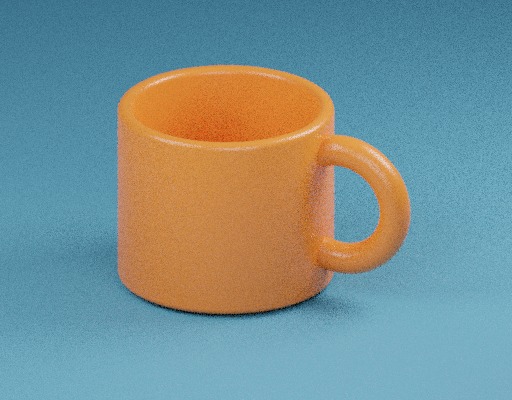
Save the linked RGBA sample and mug photo, and select both. The PNG measures 4 × 2 and the JPEG measures 512 × 400. Choose WebP, quality 75, Maximum side 128 and Target per file 1 KB, then compress.
| Source | Decoded dimensions | Output dimensions |
|---|---|---|
| RGBA channel sample | 4 × 2 | 4 × 2 |
| Mug photo | 512 × 400 | 128 × 100 |
ToolMellow RGBA channel sampleToolMellow mug example photoWebP Container Specification
Review each result and then compare AVIF
The size check uses the actual bytes and treats 1 KB as 1,000 bytes. A result above the target is still offered with a size notice. Lower quality or choose a smaller maximum side if you need another trial.
Choose AVIF and process the same files again. Compare the actual byte counts and inspect whether partial opacity is visible through the checkerboard on the RGBA sample.
Read the file mapping in the ZIP
Download batch ZIP. Open compression-report.json to match the numbered output names to their sources. The report shows saved width, height, output bytes and target state. A failed input is listed with its error and has no image in the ZIP.
To keep original dimensions in a later run, enter 0 for Maximum side. The original bytes are reused when the format and dimensions match and the new candidate is no smaller.
Common questions
Can I send WebP and AVIF files through the same batch?
Yes. Include supported still WebP and AVIF files alongside JPEG or PNG and choose one output format for the batch.
Why do two source files with the same name have separate outputs?
The source position becomes the filename prefix. The report links both outputs back to their own source rows.